
Whether you’re a student, a remote worker or a freelancer, working from a café can be the best. The ambient noise, the scent of freshly brewed coffee and the warm environment can work wonders for your concentration.
But here’s the deal — not every seat is a good seat.
The wrong place can suck your laptop battery dry, damage your back, disrupt your Wi-Fi signal or make your screen nearly impossible to see. This laptop café guide is the solution to all of that.
These 7 simple tips for seating will allow you to choose the best place each and every time.
Why Rethinking Your Seat Choice Can Change Everything
When they walk into a café, most people take any open seat. Big mistake.
Where you sit matters to your posture, your visibility to a screen, your connection to Wi-Fi, your amount of noise and even the battery life on your computers. An uncomfortable seat can turn a two-hour work session into labored torture.
A great seat? It disappears. You forget that you’re even sitting somewhere and you just get in the zone.
Well, let’s make sure it does every time with this simple laptop café guide.
Tip 1: Always Seek a Power Outlet First
What Most People Forget About Battery Life
Well before you even consider nice views or a comfortable cushion — find a seat where there’s a power outlet nearby.
Laptop batteries are sneaky. They’re fine, and then — bam! — 20 percent while you’re doing something critical. Without the ability to plug in at a café, it means constant low-level stress. You’ll keep looking at your battery icon instead of what you’re working on.
And that’s the most important rule in any laptop café guide.
What to do:
- Make a walk around the entire café before finding a seat.
- Peek along walls and behind counters — outlets are generally hardwired into the wall at floor level or mid-height.
- Some newer cafés have tables that come with built-in USB-A and USB-C ports. These are gold. Grab them first.
- Always take your charger and a little power strip. A small two-outlet strip allows you to share and usually earns goodwill with other café workers.
Pro tip: When two seats are available — one with an outlet and one without — always take the outlet seat. You can adjust for noise or light later. You cannot work around a zero percent battery.
Tip 2: Fight the Glare — Find Your Screen’s Best Position
Light Is Your Friend and Enemy
Natural light feels great. But when it lands on your screen directly, it’s your worst enemy.
Text is nearly unreadable thanks to screen glare. It becomes hard on the eyes within minutes. And no matter how much you angle your screen, that washed-out white reflection never quite goes away.
The easy solution: sit with light coming from the side — not behind or in front of you.
The three positions to know:
| Light Position | Screen | Rating |
|---|---|---|
| Light behind you | Glare on screen | ❌ No good |
| Light in front (window facing you) | Backlight washes out your face | ❌ No good |
| Light to your side | Clear screen, natural brightness | ✅ Best |
If you’re by a window, orient your laptop so the window is to your left or right. Never sit facing a bright window, or with one behind you.
If you can only snag glare-heavy seats, crank your screen brightness up to max or put on an anti-glare screen protector (they’re $10–$15 and absolutely worth it).
Tip 3: Move Closer to the Wi-Fi Router
Distance Kills Your Connection
Wi-Fi speed decreases with distance rapidly. Walk just over 30–40 feet from a router and you could lose half your speed — even if the signal reads “full” on your device.
Here’s the real reason: signal bars don’t give you the big picture. They prove you’re connected, just not how quickly the data is moving. When the café is busy, all customers are using the same router. The closer you are, the more powerful and stable your slice of that bandwidth.
For this laptop café guide, the first step when entering is locating the router.
How to find the router:
- Look for a small black or white box — roughly 8 by 8 inches — usually mounted high on a wall near the counter or cash register.
- Just ask a staff member — they’re generally happy to help.
- Use a free app such as WiFi Analyzer on your phone to check signal strength in different spots.
Tips: Avoid metal shelves, thick walls and large appliances — these all block Wi-Fi signal. Seats near a bathroom wall or back kitchen often have the worst connectivity.
Tip 4: Familiarize Yourself With Noise Zones Before You Sit

Not All Café Noise Is Equal
The noise of a café is actually good for focus — there’s science behind this. Studies indicate that a moderate sound environment at about 70 decibels (light chitchat, coffee machines, quiet music) promotes creative thought and new ideas.
But there’s a big difference between useful background buzz and disruptive noise.
The noisy spots to avoid:
- Smack dab next to the counter or barista station — constant orders, machine sounds, clattering cups.
- By the entrance door — every open and close ushers in street noise and cold air.
- Tables near large groups — one loud group can spoil an entire session.
- Near speakers — the sound is more potent than you think just a few feet away.
The quieter spots to find:
- Back corners — hidden and naturally protected from foot traffic.
- Upstairs seats (if the café has them) — generally calmer and less chaotic.
- Side walls away from the counter — a sweet spot of ambient buzz without the chaos.
If you get distracted easily, invest in a pair of noise-cancelling earbuds or headphones. It’s one of the best purchases a café worker can make.
Tip 5: Pick a Table That Agrees With Your Body
Bad Posture Sneaks Up on You
When you sit down in a café, you probably don’t think about the height of the table. But your neck and back will certainly remind you after two hours of hunching over a low coffee table.
Comfort is a major part of this laptop café guide because it determines how long you can realistically work.
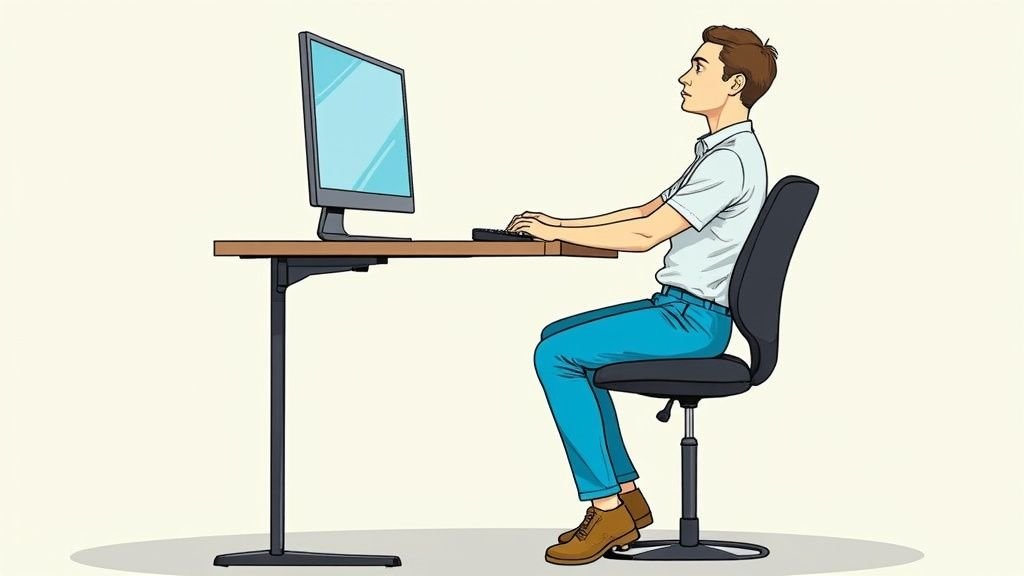
Ideally, your setup looks like this:
- When your hands are on the keyboard, your elbows should sit at about 90 degrees.
- Your screen should be at or just below eye level.
- Your feet should be resting flat on the floor — not hanging or squished under a miniature chair.
Table types and how they rank:
| Table Type | Posture Rating | Notes |
|---|---|---|
| Standard café table (28–30 in) | ✅ Excellent | Works for most laptops |
| Low coffee table | ❌ Poor | Forces you to hunch forward |
| Bar-height counter stool | ⚠️ Fair | Good only with a matching tall chair |
| Booth seating | ✅ Good | Strong back support, stable surface |
| Couch with lap tray | ❌ Poor | Comfortable short-term, bad long-term |
If the café has only low tables, try the counter for a spell. Many cafés now have a standing counter area against a wall — these are often quiet, with outlets nearby, and surprisingly comfortable.
Also: if you work from cafés frequently, bring a small laptop stand that props your screen up an inch or two. They fold flat and weigh next to nothing, transforming any table into a more ergonomic setup.
Tip 6: Stay Private From Prying Eyes
There’s a Lot You Don’t See
This is something most people skip, but it is very important: your screen privacy.
If you’re working on a presentation, writing an email or dealing with any sensitive information, other patrons at the café can see your screen — especially in busy, crowded places where tables are close together.
You may feel paranoid — but it’s just good practice.
Smart moves for screen privacy:
- Pick a seat where the wall is behind you. It gives you a clear view of the room and makes your screen visible only to yourself.
- Sit in a corner — one wall behind you and one to the side means almost no one can see your screen.
- If you’re in a more public-facing area, use a privacy screen filter. They’re thin films that stick to your laptop display and make it dark (illegible) from a side angle — available on Amazon for most laptop sizes.
- In open areas, angle your screen slightly toward you. This doesn’t solve the problem entirely but reduces visibility.
A corner seat with your back to the wall is the ultimate solution. And as a bonus, corners tend to be quieter, farther from the counter and closer to wall outlets. It’s a triple win.
Tip 7: Inspect Your Exit and Comfort Access
The Seat Nobody Thinks About Until It’s Too Late
This last tip may sound basic, but it makes a big difference in how comfortable your session is.
When you’re deep in your work, minor hassles turn into major annoyances.
Here are some things to check before you commit to a seat:
- Bathroom access: Is it close, or do you have to pass through the entire café each time? If you sit for hours (as most café workers do), this gets relevant fast.
- Temperature: Are you below an air conditioning duct? Near a drafty door? Cafés often have uneven temperature zones. The window spot is lovely but can be freezing in winter and blisteringly hot in summer.
- Traffic lanes: Are you in a spot where staff or other patrons walk by constantly? Getting bumped every few minutes tears your focus away.
- Getting out: If you’re in an inner booth or a corner, can you easily get up to stretch, refill your drink or leave in an emergency? Being jammed in feels fine for 20 minutes and terrible after an hour.
The best café seat checks all these boxes: near an outlet, good light angle, quiet noise zone, ergonomic table height, wall behind your screen and easy to exit.
A Café Seating Checklist for the Perfect Spot
Here’s a quick checklist to run through every time you enter a new café:
- Power outlet within reach
- Light source to the side (not behind or in front)
- Close to the Wi-Fi router (within 20–30 feet)
- Away from the counter, entrance and speaker zones
- Table at a comfortable ergonomic height
- Wall or corner behind you for screen privacy
- Easy access to the bathroom and exit
- Comfortable temperature — no drafts or vents overhead
What to Look for Before You Even Step Inside
Not every café is equal when it comes to working on a laptop. You can eliminate bad choices before even stepping inside with a few quick checks.
Signs a café is laptop-friendly:
- Their signage or social media lists free Wi-Fi.
- Several power outlets are visible in photos online.
- Reviews mention “good for working” or “quiet atmosphere.”
- They have large tables, not just little round ones.
- There is no posted time limit on seating.
Red flags to avoid:
- Cafés that ban laptops or limit Wi-Fi access.
- Tiny, trendy spots with no tables — just bar stools.
- Establishments that pump out loud music as part of their identity.
- Places with heavy lunchtime foot traffic but no designated work area.
Google Maps reviews are your ally here. Search “laptop-friendly café [your city]” and check recent reviews. People are very particular about Wi-Fi speed, noise level and number of outlets.
More Gear That Makes Any Café Seat Better
A mediocre seat can, with the right gear, become workable. Here are some affordable items every café worker should consider:
The café worker’s starter kit:
| Item | Why It Helps | Approx. Cost |
|---|---|---|
| Laptop stand (foldable) | Elevates screen to eye level | $15–$30 |
| Mini power strip | Enables outlet sharing, adds more ports | $12–$20 |
| Noise-cancelling earbuds | Drowns out distracting sounds | $30–$200 |
| Privacy screen filter | Prevents side eyes on your screen | $15–$25 |
| Portable Wi-Fi hotspot | Backup for weak café Wi-Fi | $10–$40/month |
| Small USB hub | Provides extra USB ports | $10–$20 |
You don’t need all of these at once. Start with the power strip and earbuds — those two items alone will significantly enhance your café work sessions.
How to Deal With Common Café Work Issues
Even in a great seat, things can go wrong. Here’s how to sort out the most common problems:
The Wi-Fi drops mid-session. Ask a staff member to reset the router — this solves most connection hiccups. If it keeps failing, use your phone as a hotspot. Keep it as a plan B.
Someone nearby is talking too loud. Put on headphones first. If it’s still too disruptive after 10 minutes, move seats politely. Don’t confront — just move calmly.
There are no outlets free. Politely ask someone to share their outlet with your power strip. Most people say yes. Bring that little power strip — it’s as much a social tool as it is a tech tool.
The lighting changes and glare appears. Clouds move. Sun angles shift. If glare suddenly strikes your screen, adjust your screen angle first, then tilt your laptop lid slightly. Moving your position by just a few inches can fix it.
Your battery is dying and no outlet seat is available. Turn down your screen brightness (this saves the most battery). Disable Bluetooth and close all applications you’re not using. Then wait — someone will vacate a seat near an outlet soon.
FAQs: Laptop Café Seating Tips
Q: Is it impolite to sit in a café for hours working on a laptop? It depends on the café. Busy lunch spots with limited seating are not ideal for long sessions. Cafés marketing themselves as work-friendly spaces now count on this kind of patronage. A good rule: purchase something every 1–2 hours, and don’t occupy a large table alone during peak hours.
Q: What’s the best time to go to a café to work? Weekday mornings between 7 AM and 11 AM are ideal. Cafés are quieter, staff are friendlier and prime seats are available. Avoid weekend mornings and weekday lunch hours.
Q: How do I find the Wi-Fi password quickly? Ask when you order. Some cafés list it on the receipt. Others have it on a chalkboard. A few print it on a card at each table — check under the sugar and condiments.
Q: Is it okay to use a café outlet without asking? Most cafés with visible outlets expect customers to use them. If you’re unsure, just ask at the counter — “Is it okay to plug in?” — and they’ll agree almost every time.
Q: What if I need to step away from my laptop? If you’re comfortable, ask a neighboring patron to keep an eye on it. Otherwise, take your valuables (phone, wallet) with you and lock your screen before leaving. Never leave your laptop unattended for a long time.
Q: How close do I need to be to the router for good Wi-Fi? Within 20–30 feet is ideal. Speed drops significantly through walls. Try to sit in line-of-sight of the router with as few walls between you as possible.
Q: Are corner seats the best? Almost always, yes. They offer privacy, less foot traffic, reduced noise and usually a nearby wall outlet. The only downside is they’re popular — arrive early to claim one.
The Bottom Line: Your Café, Your Rules
Café work can be one of the most productive and enjoyable experiences — when you know how to set yourself up right.
This laptop café guide has given you 7 easy, straightforward steps to identify the best table possible. Find your outlet first. Control your lighting. Sit close to the router. Choose a quiet zone. Protect your posture and protect your privacy. And always assess your comfort level before you settle.
You don’t have to nail every single tip every time. Start with just two or three — outlet access and noise level, for example — and build from there.
The ideal café seat awaits you. Now you know where to look.