
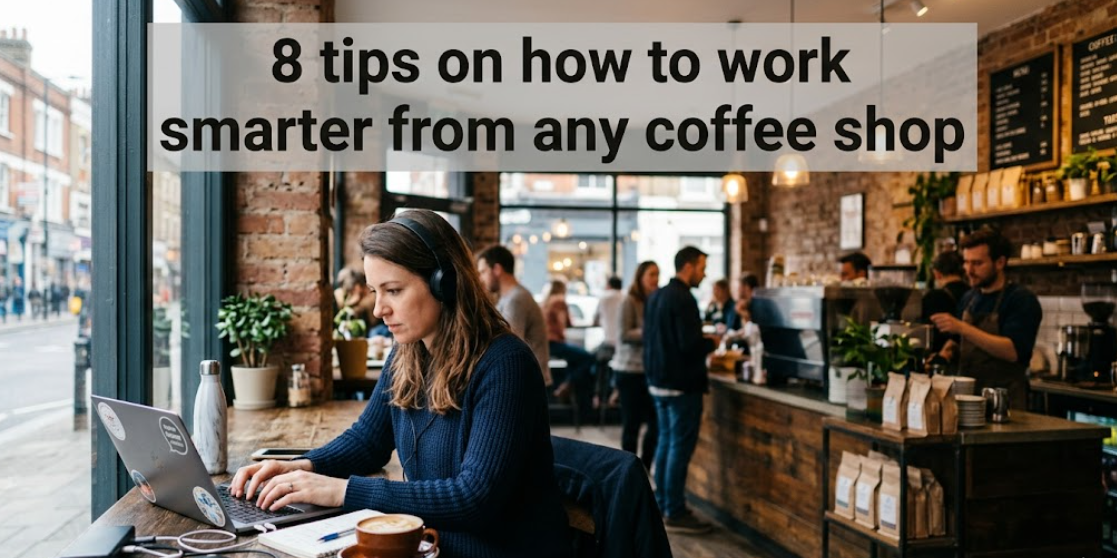
There’s something kind of invigorating about working from a café. The smell of freshly brewed coffee, the soft buzz of conversation and the freedom to sit wherever you choose. But then the WiFi lags. Your video call freezes. A page takes forever to load. Sound familiar?
Whether you’re a student, freelancer, remote worker or digital nomad, getting a fast and stable WiFi connection at a café can seem like chance. Some days it’s great. Other days it’s painful.
The good news? There are actually smart, simple things you can do to greatly improve your café WiFi experience. This laptop café guide takes you through 8 WiFi tips that will work — no tech degree required.
Let’s get into it.
Why Café WiFi Can Be Slow to Begin With
Before we dive into tips, it helps to understand why café WiFi is slow.
Most cafés offer shared WiFi. That means all of the customers — the person streaming music, the table of students on Zoom, the guy downloading a bunch of files — are using that same connection. The more people sharing, the slower it becomes for everyone.
Factor in older routers, thick walls impeding signals and peak hours (typically mid-morning and lunchtime), and you have a recipe for frustration.
But don’t give up on café work sessions yet. With the right moves, you can avoid most of these problems.
Tip 1 — Get There Early or Choose Off-Peak Hours
This one feels almost too straightforward. But timing is everything.
Most cafés get hit hard between 9 a.m. and noon, when remote workers and students swarm in. Lunchtime is another bottleneck. Late afternoons tend to be quieter and the WiFi speeds are noticeably better at that time.
Optimal hours to get work done from a café:
| Time Slot | Crowd Level | WiFi Speed |
|---|---|---|
| 7:00 AM – 9:00 AM | Low | Fast |
| 9:00 AM – 12:00 PM | High | Slow |
| 12:00 PM – 2:00 PM | Very High | Very Slow |
| 2:00 PM – 5:00 PM | Moderate | Decent |
| 5:00 PM – 7:00 PM | Low–Moderate | Good |
Try for that early morning window if you can work flexibly. You’re likely to find the fastest speeds and usually a quieter vibe too.
Tip 2 — Get as Close to the Router as Possible
The farther you are from the WiFi router, the weaker your signal. This is basic physics — radio waves lose strength over distance.
When you enter a café, have a quick look around. Routers are usually:
- Mounted high on a wall
- In the vicinity of the counter or barista station
- A small black or white box with antennas
If you can, sit within 10–15 feet of it. Avoid corners, basements or rooms divided by thick walls and partitions. Concrete and brick walls are particularly poor at passing WiFi signals through.
How to Spot a Good Spot
Before you take your seat, ask yourself these quick questions:
- Do I have line of sight to the router from here?
- Am I positioned away from the entrance (which can cause signal interference)?
- Is this seat next to the microwave or industrial coffee machines?
Yes — microwaves and coffee makers can indeed disrupt WiFi signals, since they operate on similar radio frequencies. Avoid them for a better connection.
Tip 3 — Connect to 5 GHz as Often as Possible
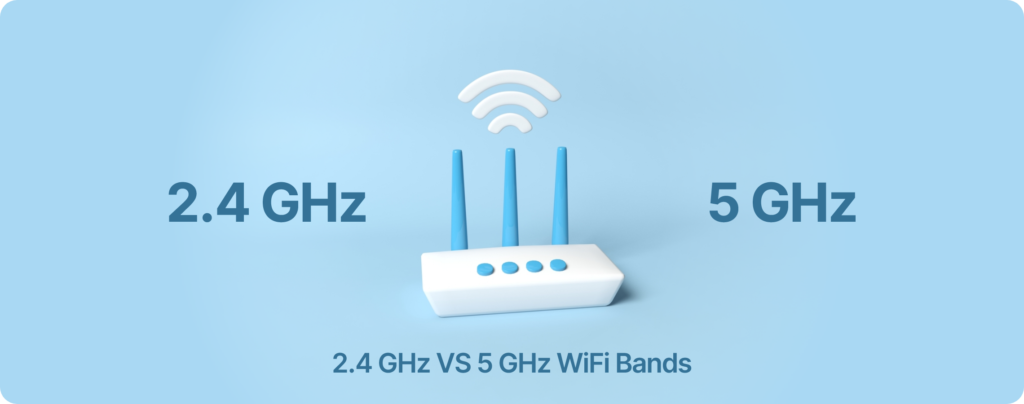
Modern WiFi routers operate on two frequency bands — 2.4 GHz and 5 GHz. Connecting to the right one can make a significant difference.
2.4 GHz band:
- Longer range
- Goes through walls better
- Gets crowded quickly as nearly every device uses it
- Slower in busy environments
5 GHz band:
- Shorter range
- Doesn’t pass through walls as well
- Far less crowded
- Much higher speeds if you are within range of the router
If you see two network names in a café — one saying “CafeName_2G” and another “CafeName_5G,” or something similar — connect to the second. If you’re nearby, always choose the 5 GHz option.
Where there’s a single name for both networks, your device typically chooses the band automatically. But you can check your laptop’s network settings to find out which band you’re connected to.
Tip 4 — Close Background Apps and Tabs That Drain Your Bandwidth
Even when you aren’t actively doing anything, your laptop could be using far more bandwidth than you think.
Applications running in the background can silently soak up your connection. Here are the usual culprits:
- Cloud backup apps syncing large files (Google Drive, iCloud, OneDrive)
- Video streaming apps (YouTube, Netflix) running in background tabs
- System updates downloading silently
- File-sharing apps (Dropbox, BitTorrent)
- Browser tabs with pages that auto-refresh
Before you settle down to work at a café, do a quick clean-up:
- Pause any cloud syncing apps
- Close browser tabs you no longer need
- Disable automatic system updates temporarily
- Close any apps you’re not using for your work session
This small step can make a significant difference to your speed without changing anything on the café’s network.
A Quick Checklist Before You Start Working
Use this every time you work from a café:
- Pause syncing on iCloud / Google Drive / OneDrive
- Close unnecessary browser tabs
- Turn off automatic updates
- Quit streaming or file-sharing apps
- Check Task Manager for high-bandwidth background processes
Tip 5 — Use a VPN (But Not Just Any VPN)
Public WiFi at cafés is open to everyone — including those who have no business looking at your data. Without protection, someone on the same network could potentially intercept your passwords or personal information.

A VPN (Virtual Private Network) encrypts your internet traffic. Think of it as a secure tunnel between your laptop and the websites you visit. No one on the café network can see what’s inside.
VPN benefits for café workers:
- Scrambles your data so it can’t be spied on
- Hides your browsing activity
- May improve speeds by bypassing ISP throttling
VPN downsides to know:
- The wrong VPN can significantly slow your connection
- Most free VPNs enforce speed limits or data restrictions
- Connecting to a server far away introduces latency
How to Choose a Fast VPN for Café Use
Look for VPNs with:
- Servers close to your location
- Fast protocols such as WireGuard or IKEv2
- Split tunneling (so it only routes sensitive traffic through the VPN)
Some highly rated options include Mullvad, ProtonVPN and ExpressVPN. Always check speed with and without the VPN to see whether it helps or hinders your connection at that particular café.
Tip 6 — Test Your Speed, Know Your Numbers
Most people describe their café WiFi as “slow” without any actual numbers to go by. But a baseline makes all the difference.
As soon as you connect, run a quick speed test. Sites like fast.com or speedtest.net take about 30 seconds and show you:
- Download speed — how fast you receive data (streaming, browsing)
- Upload speed — how fast you send data (video calls, uploading files)
- Ping/Latency — delay in milliseconds (the lower the better for calls)
What speeds do everyday tasks require?
| Task | Min Download Speed | Min Upload Speed |
|---|---|---|
| Basic browsing | 1 Mbps | 0.5 Mbps |
| Video calls (HD) | 3–5 Mbps | 3–5 Mbps |
| Streaming (HD) | 5–8 Mbps | — |
| File uploading | — | 5+ Mbps |
| Large file downloads | 10+ Mbps | — |
If your speed test shows less than 3 Mbps download, try relocating, switching frequency bands (2.4 GHz or 5 GHz), or switching to mobile data before your next meeting.
Tip 7 — Always Be Ready With a Mobile Data Backup
Here’s the honest truth: no café can guarantee great WiFi every time. Even your favourite place can have an off day — a router reboot, an internet provider outage or an unusually busy afternoon.
Which is why it’s smart, not paranoid, to have mobile data as a backup.
Most smartphones allow you to create a mobile hotspot — essentially turning your phone into a personal WiFi router using your cellular data plan. If café WiFi is unreliable, simply switch your laptop to your phone’s hotspot.
How to Set Up a Hotspot Quickly
- iPhone: Settings → Personal Hotspot → Turn on
- Android: Settings → Network & Internet → Hotspot & Tethering → WiFi Hotspot → Turn on
Pro tips for hotspot use:
- Keep your phone plugged in — hotspots drain battery quickly
- Use a strong hotspot password
- Check your provider’s data limits before heavy use
- Keep your phone on the table, not in your bag, for a better signal
If you work regularly from cafés, consider a data plan with a sufficient hotspot allowance. It’s one of the better investments for a work-anywhere setup.
Tip 8 — Choose Cafés Designed for Remote Workers
Not all cafés are equal. Some are optimized for quick coffee runs. Others actively embrace remote workers with fast, dependable setups.
Knowing what to look for — and where to find it — saves you time and frustration.
Green Flags: What to Look for in a Laptop-Friendly Café
- Plenty of power outlets around the seating area
- WiFi speed advertised (a growing number of cafés now do this)
- Designated quiet zones or work areas
- A modern-looking, visible router
- Staff who don’t rush you to leave
How to Find Them
- Google Maps — search “café with fast WiFi” in your city
- Yelp — filter for “WiFi” and read comments about connection quality
- WorkFrom.co — a directory of remote-worker–rated places to work
- Foursquare — WiFi quality is often mentioned in user-generated tips
- Facebook groups — local café recommendations are frequently shared in remote worker communities
Once you discover a café with dependable WiFi, test it at different hours. If you find it consistently good, add it to your regular rotation.
Bonus: Quick Speed Tricks Nobody Shares
These don’t warrant a full section, but they’re genuinely useful micro-tips:
Switch your DNS server. Your laptop uses DNS to convert website names into addresses. The café router’s default DNS can be quite slow. Switch to Google (8.8.8.8) or Cloudflare (1.1.1.1) for faster lookups. It’s a simple adjustment in your network preferences.
Use browser extensions to limit what tabs can do. Tools like The Great Suspender or OneTab put inactive tabs to sleep so they stop refreshing and consuming bandwidth.
Download what you can beforehand. If you know you’ll be working from a café, download files, slides or reference documents before leaving home. This reduces your reliance on the café connection.
Use lightweight browser modes. Google Chrome has a Lite Mode for lower data usage. Firefox and Brave are typically less bandwidth-hungry than Chrome in everyday use.
Restart your WiFi connection. Sometimes all it takes is forgetting the network and reconnecting — this gives you a fresh IP address and potentially a better slot on the router.
How to Secure Your Data on Public WiFi
Fast WiFi is great. But security matters too. Café crowds are mixed, and public networks are always less secure than private ones.
Some key habits to remember:
- Look for HTTPS in the address bar before entering passwords or card information
- Avoid banking or shopping on café WiFi unless you have a VPN active
- Disable file sharing on your laptop (found in your system settings)
- Enable two-factor authentication on important accounts — even if someone steals a password, they can’t get in without your second factor
- Log out of accounts when done, particularly on shared or unfamiliar networks
Safety doesn’t have to be complicated. These five habits address 90% of the risks.
Frequently Asked Questions About Café WiFi and Laptop Use
Q: Is it impolite to sit in a café using its WiFi for hours and only buying a croissant? Yes, it can be. Most cafés don’t mind remote workers but do appreciate the support. Every hour or so, get a drink or snack. Some cafés have a minimum spend rule for WiFi users — check before you settle in.
Q: My laptop keeps disconnecting from café WiFi after a few minutes, but my phone stays on. Why? This is usually due to a router timeout policy or congestion management. Disable your laptop’s “power saving” setting for its WiFi adapter — found in Device Manager on Windows or Energy Saver settings on a Mac.
Q: What speed do I need for video calls at a café? Zoom and Google Meet require at least 3 Mbps download and 3 Mbps upload for a stable HD video call. For multiple participants or screen sharing: 5–10 Mbps. If speeds fall below that, switch to audio-only or use mobile data.
Q: Can a VPN actually make café WiFi faster? Sometimes, yes. If the café’s internet provider is throttling certain types of traffic (such as video streaming), a VPN can bypass that and restore full speed. But if the network is simply overloaded, a VPN won’t help — and may make things slower. Test both ways.
Q: What if there’s only one WiFi network in the café? Connect to it and run a speed test. If it’s fast enough, great. If not, try changing your DNS to 1.1.1.1 or 8.8.8.8 and close background apps. If speed remains poor, move closer to the router or switch to your mobile hotspot.
Q: Why does my laptop auto-connect to slow café networks? How do I stop it? On Windows, go to Settings → Network → Manage Known Networks and delete the ones you don’t want to join automatically. On Mac, go to System Settings → WiFi → Known Networks and remove them.
Q: Are there cafés specifically for remote workers? Yes! Coworking café hybrids are growing in cities. They offer fast WiFi, guaranteed seating and typically charge a small daily fee. Sites like Coworker.com and Deskpass.com can help you find them around the world.
Putting It All Together
Getting fast, reliable WiFi at a café isn’t magic — it’s simply a few smart habits stacked on top of each other.
Here’s a quick recap of all 8 tips from this guide:
- Time your visits — fewer users means faster speeds
- Sit close to the router — proximity is key for signal strength
- Use the 5 GHz band — faster and less crowded
- Close background apps — stop the hidden bandwidth leaks
- Use a VPN — stay safe and occasionally get a speed boost
- Test your speed — know your numbers before each session
- Have mobile data ready — always have a plan B
- Pick the right café — not all places are created equal for remote work
None of these tips require technical expertise. Most take less than two minutes to set up. But together, they can transform a frustrating café session into a genuinely productive one.
Next time you open your laptop at your favourite coffee shop, run through this checklist and notice the difference. Your workflow will thank you.